

Autodesk Inventor supports the import of AutoCAD 2D DWG files to use in creating 3D geometry. You can do this by importing the DWG file directly into a part file as an associative underlay.
Linear entities in the AutoCAD file can then be projected onto a sketch to use in creating solid geometry. The DWG file remains linked to its source, so any updates made in AutoCAD will automatically be reflected in an Inventor geometry that references it. This is especially useful for maintaining design intent and ensuring changes propagate smoothly across platforms.
Tips for working with the DWG file (once imported)
-
To import the file, click Import on the 3D Model tab > Create panel. Change the file type to .DWG and select the file to import. You will then be prompted to select a plane or face to locate the file and set an origin point reference for precise positioning.
-
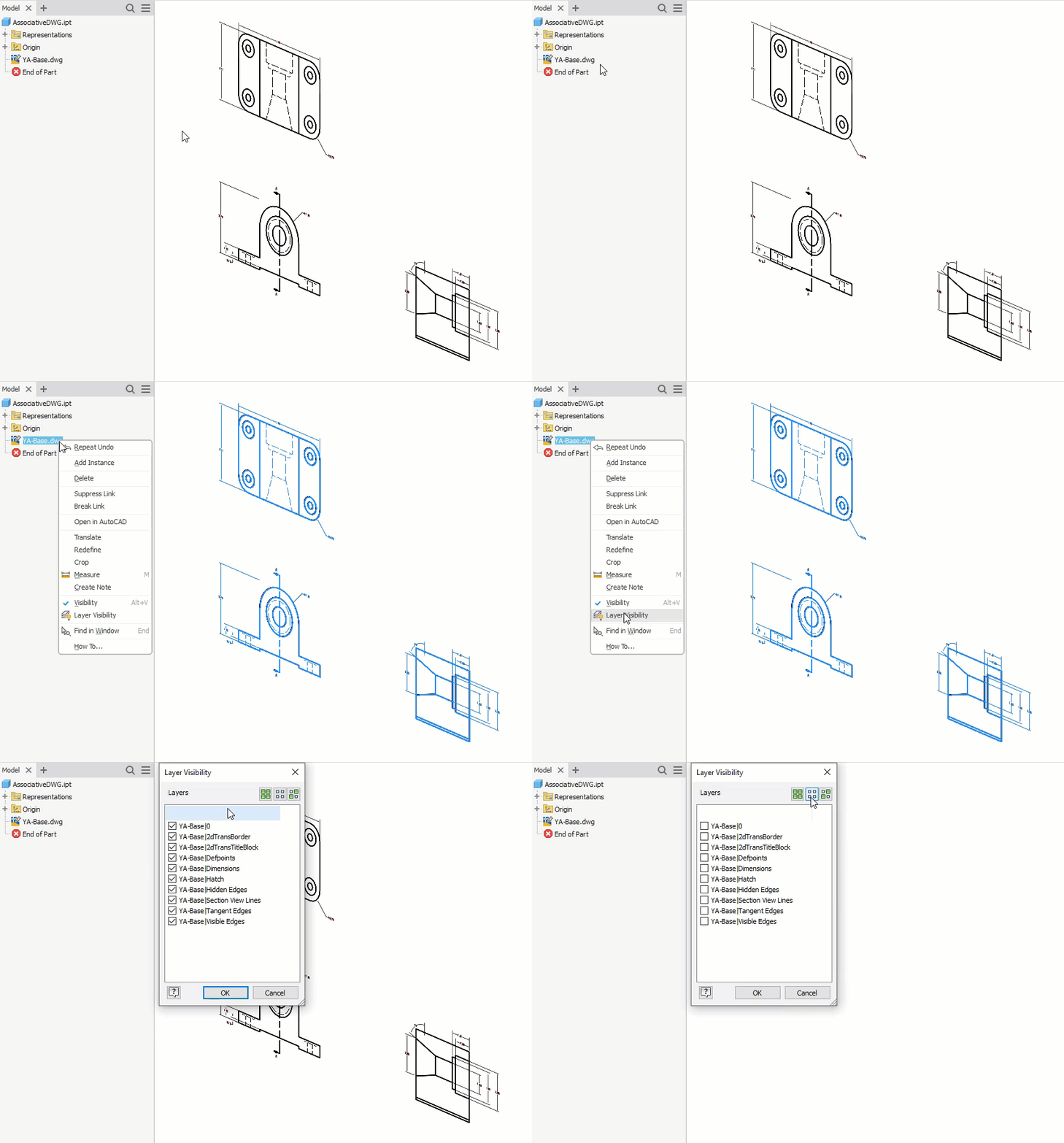
You can control which layers of the DWG are visible. The Layer Visibility dialog allows you to toggle layers on or off, helping you focus on relevant data and optimize performance. Filters make it easy to select, clear, or invert layer selections as needed.
-
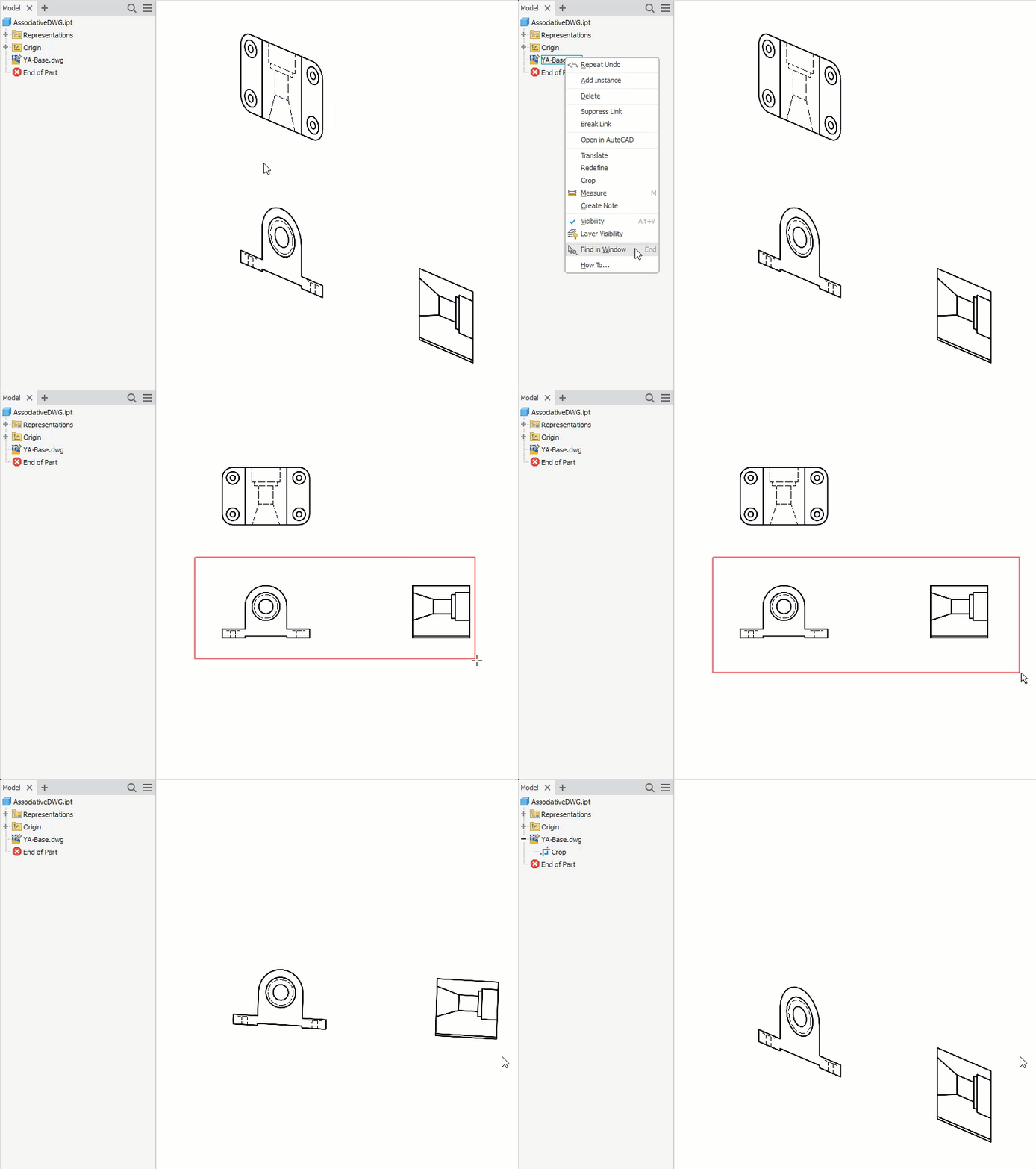
If the DWG isn’t positioned correctly, you can translate it using a triad tool or snap it to specific reference points. You can also crop it by drawing a bounding box around the entities you want to keep, and Inventor will remove the rest.
Creating geometry from DWG underlays
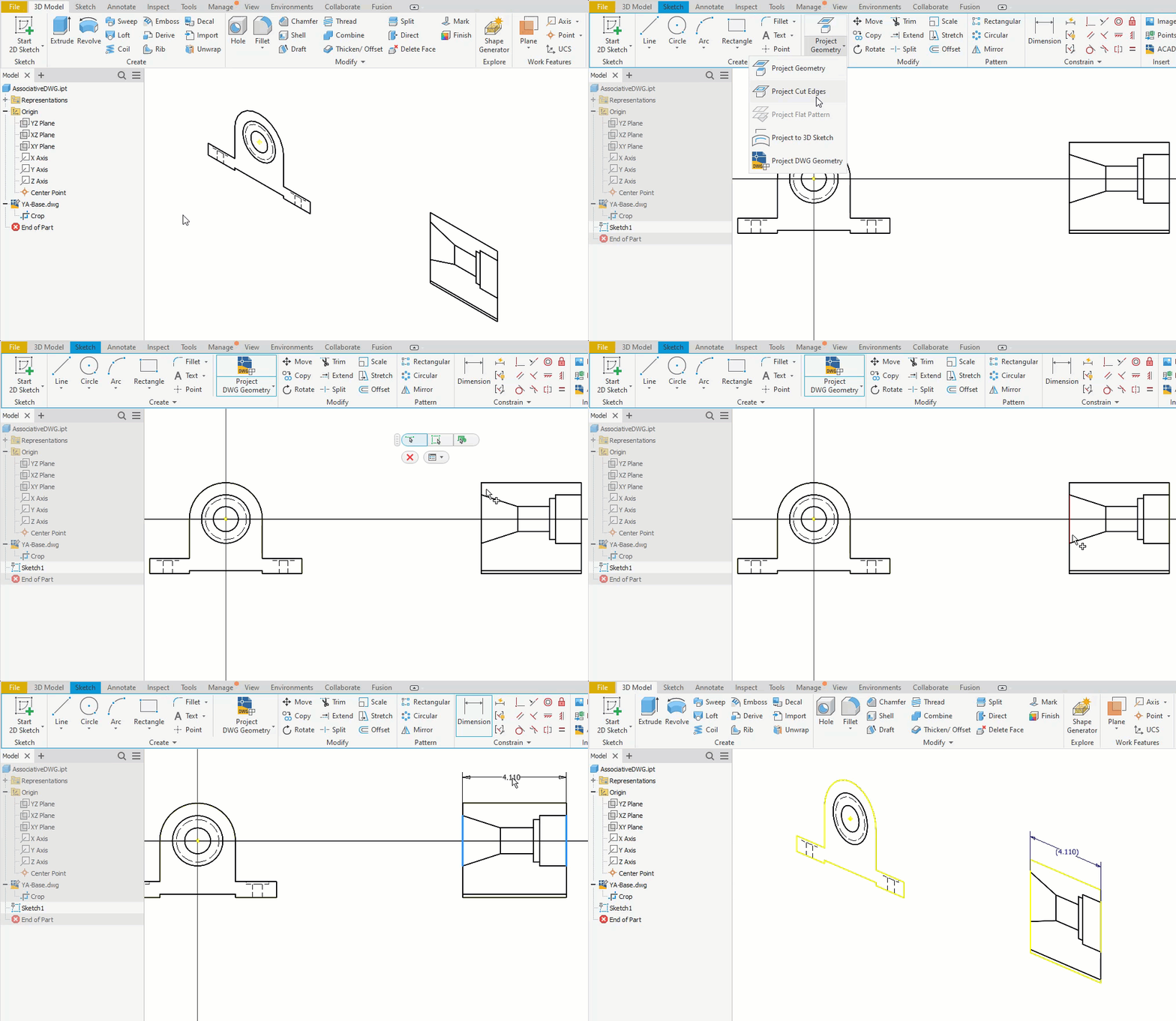
To turn 2D DWG data into 3D geometry, start a new sketch and use the Project DWG Geometry option to project the required edges from the drawing geometry into the sketch. By projecting, you maintain a reference between your sketch and the DWG, ensuring that projected entities are fully constrained. You can also add driven dimensions to control key features, making it easy to define parameters like depth or width directly from the underlay.
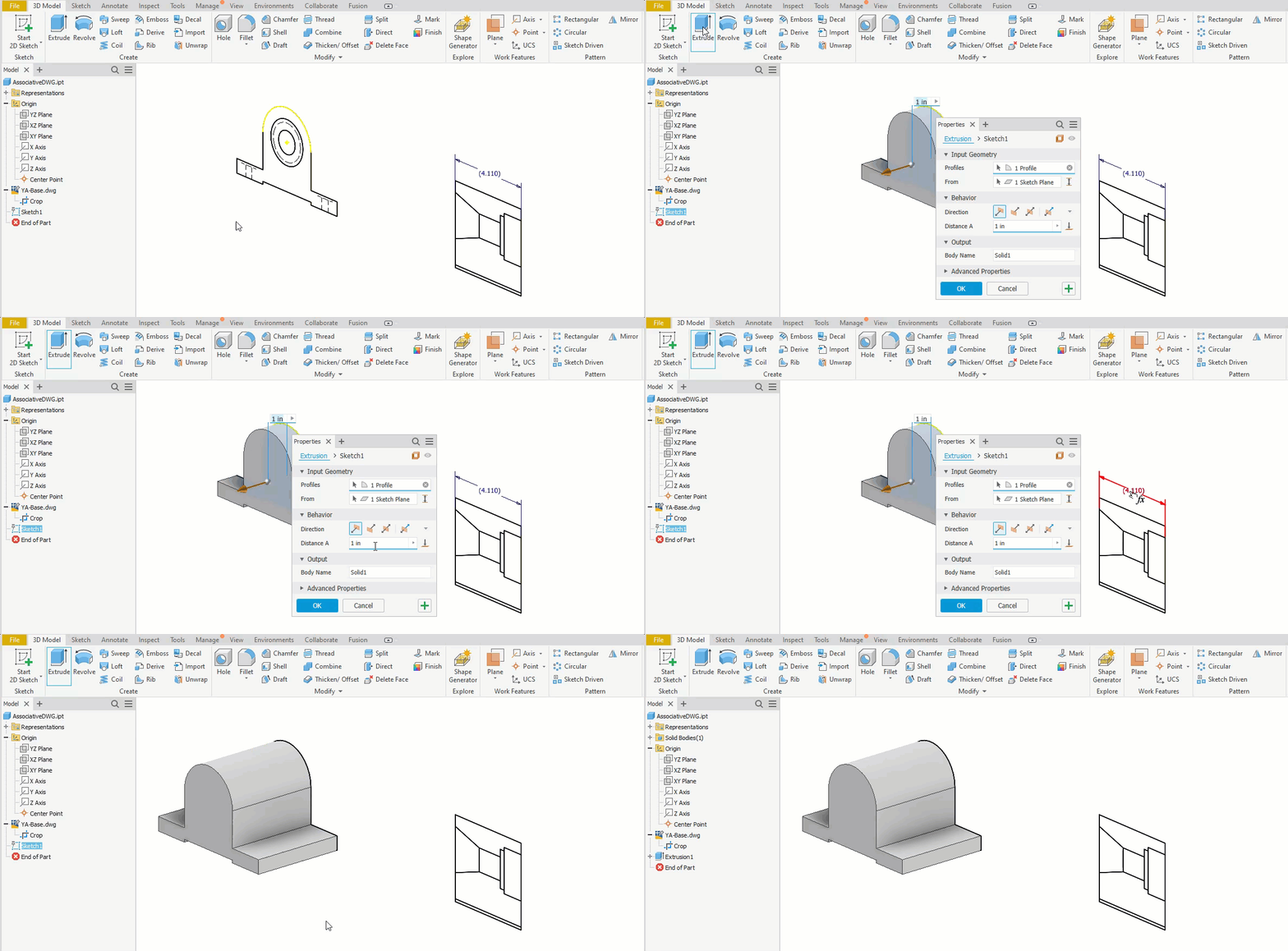
Using the projected sketched entities, you can extrude them to create 3D geometry, as shown below. In this case, the driven dimension was used to drive the depth of the extrusion to further maintain an accurate representation of the 2D drawing.
You can continue to project entities or create reference dimensions that you can use to create additional geometry. You can even import a second copy of the DWG on a perpendicular plane or face to capture details from a top view.
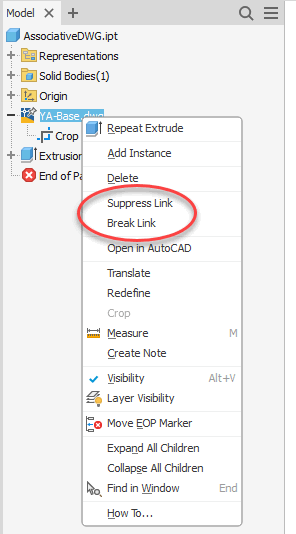
Tip: Once you have completed the 3D geometry, you may want to either temporarily suppress or permanently break the link to the source DWG file. To do this, right-click on the DWG file and select either option, as shown below.
Importing AutoCAD DWG files as underlays in Inventor is a robust way to bridge between 2D and 3D workflows. It enables associative geometry creation, precise control over imported data, and seamless updates, making it a convenient technique to use when you have existing 2D drawings that can help you create 3D models.
About the Author
Follow on Linkedin More Content by Jennifer MacMillan


