

Most of us are familiar with zipping files in order to group or compress them for sharing with others, but there are different ways you can manipulate these files to get the most out of the tool. Here are a few quick tips for working with zip files.
Organize Files Before Zipping
You can select individual files in a folder and zip them together, but when unzipped they will be placed as individual files in whatever folder you unzip them to. This may be confusing if the file is unzipped within a folder containing other files. Placing your files in a top-level folder and zipping that folder instead allows the files to be contained when unzipped for easier organization. 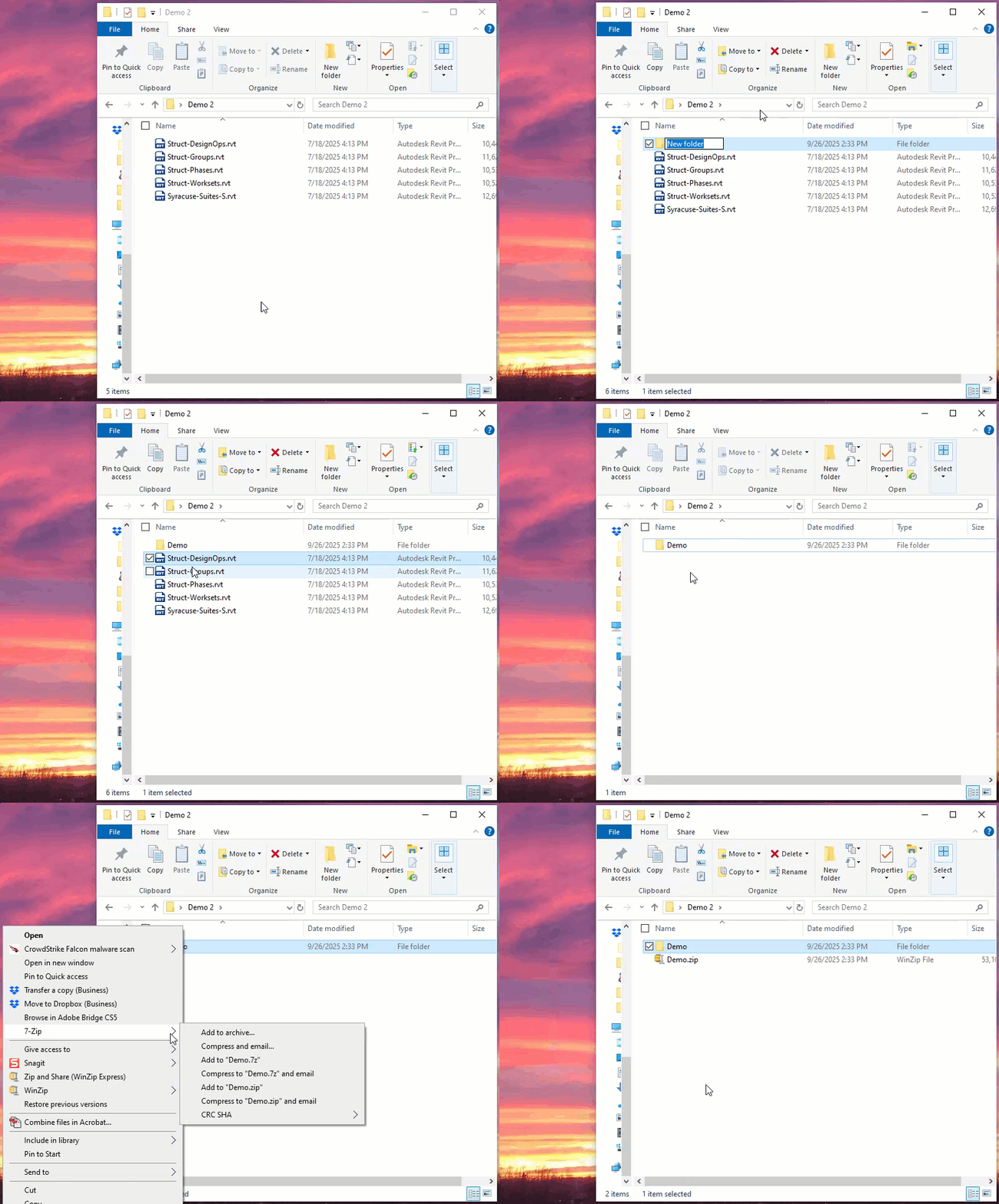
Splitting and Merging Folders
If you have a size limit for your preferred sharing program, you might run into issues with larger folder sizes even after they are compressed into a .zip. To make uploading/downloading and sharing faster and easier, you can split a folder into smaller folders before zipping. If the top-level folder names are the same and you maintain your folder structure, the smaller folders will merge back into one folder if you unzip the files in the same place.
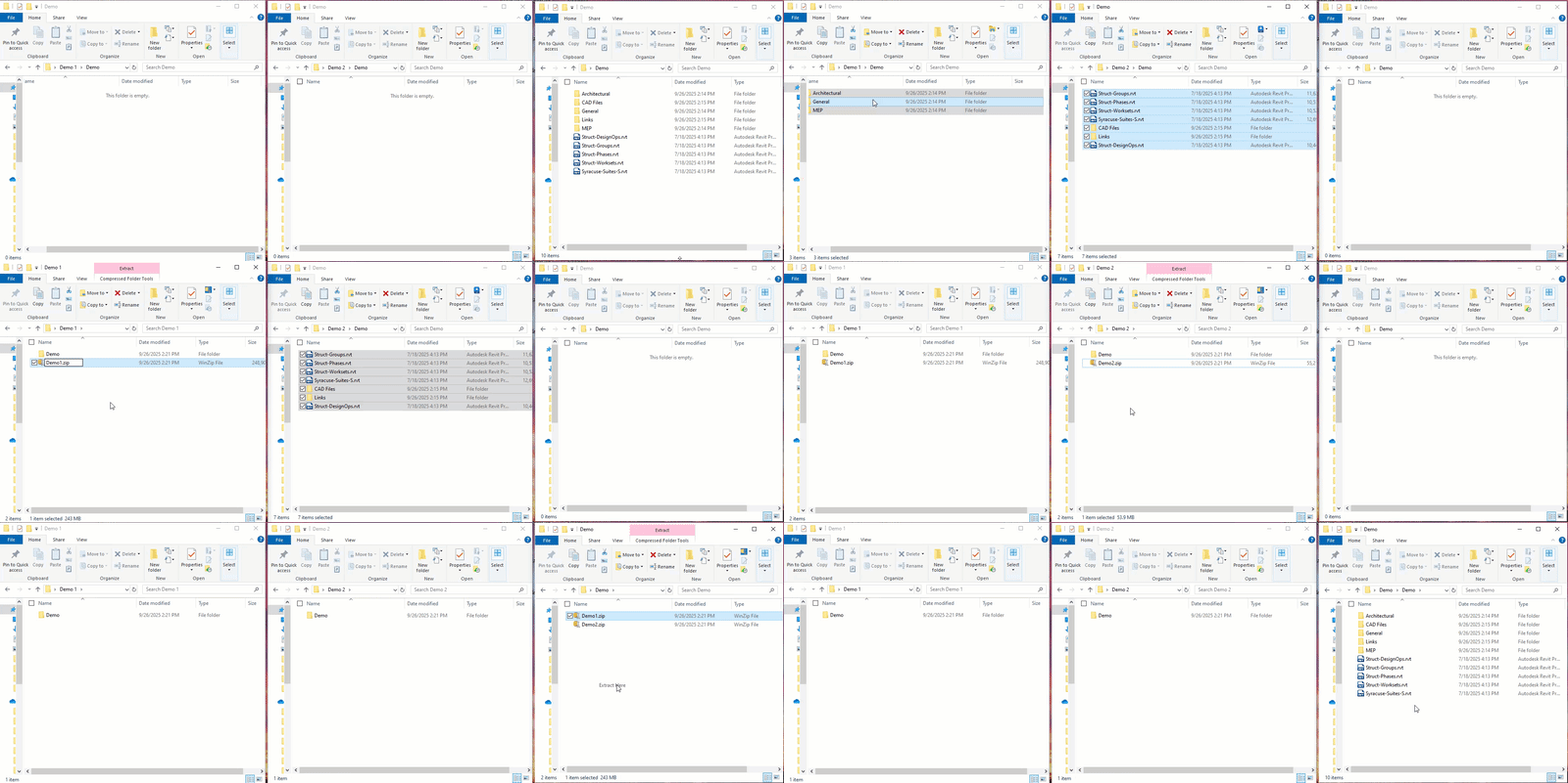
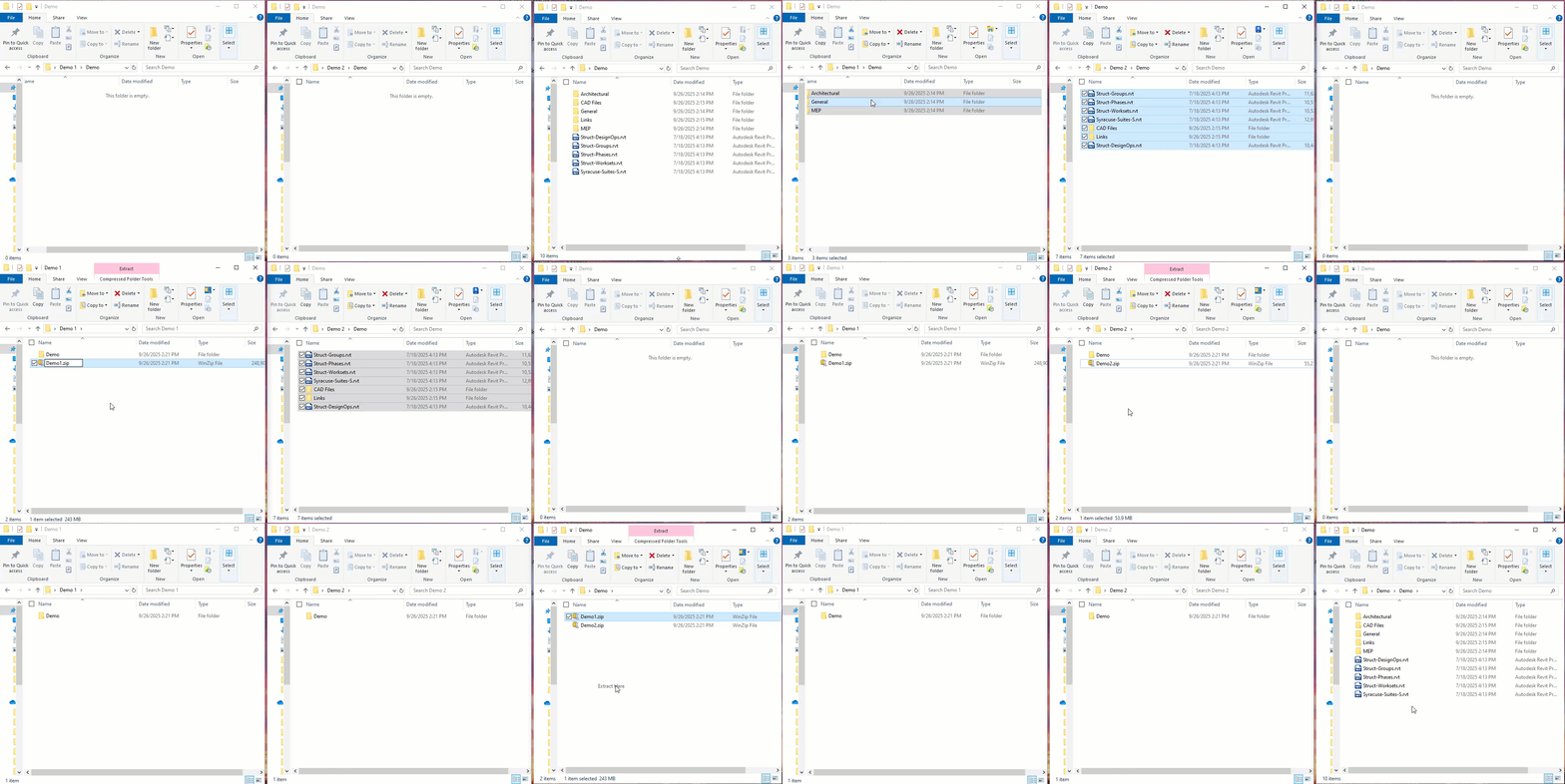
Be sure to pay attention to your folder path when unzipping if given the option. You want to make sure you are extracting to the same location for both files. If using a program like 7-Zip, you might have an Extract here option, in which case you can place the .zip files into the same folder and extract from there. If the files are unzipped in different folders, they will still merge if you move the top-level folders into the same folder location as long as the folder names are the same.
Adding a Password
If you want to add a password to your zip file, you will need to use a third-party application for zipping your files, like 7-Zip.
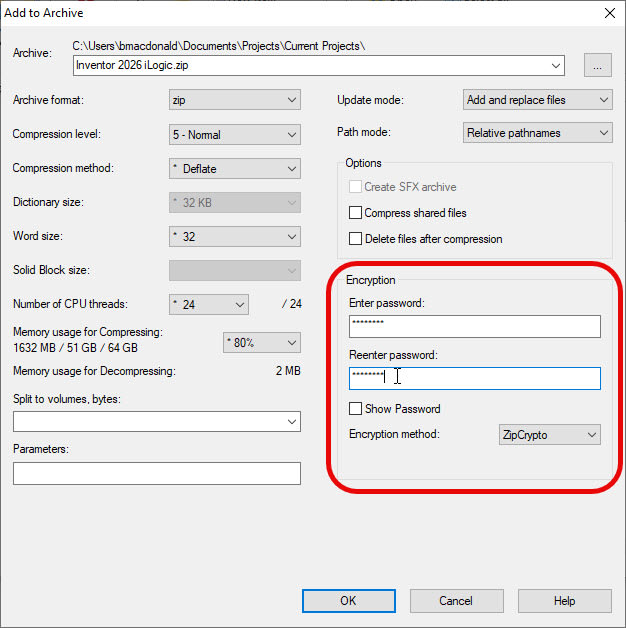
- With 7-Zip, right-click on your folder or file and select 7-Zip>Add to archive….
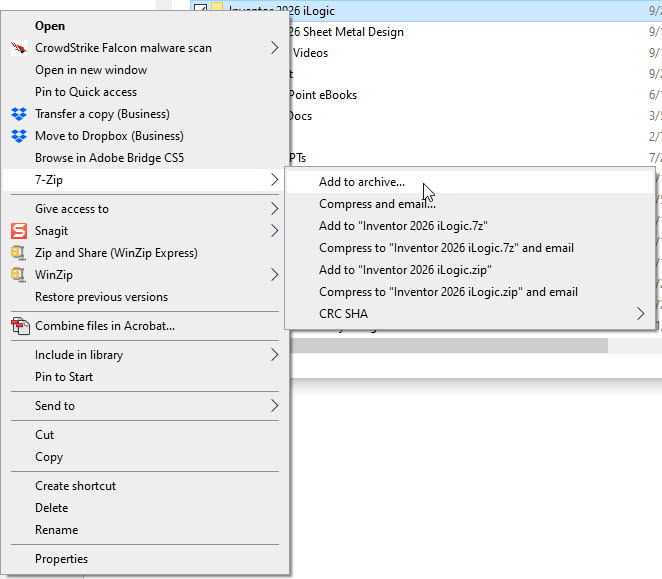
- In the Add to Archive dialog box, enter a password (and re-enter it if you don’t have Show Password turned on) and click OK to zip the file.
I hope you found these tips helpful for zipping your own files!
About the Author
Follow on Linkedin More Content by Breanne MacDonald


