

Accurate measurements from PDFs are critical for takeoffs and coordination. Recently, I encountered a frustrating issue: a PDF created using the Bluebeam Revu 21 add-on for Revit wouldn’t calibrate properly in Bluebeam. No matter how many times I recalibrated, the scale drifted, measurements were inconsistent, and the PDF simply couldn’t be trusted.
The Problem
When exporting a sheet from Revit using the Bluebeam add-on, the resulting PDF looked fine, but calibration in Bluebeam was unreliable. Even after multiple attempts, measurements didn’t match the Revit dimensions. This made the PDF unusable for accurate takeoffs.
What I Tried
Here’s the workflow I followed:
In Revit, I went to Add-Ins > Create PDF and exported the sheet without changing any settings.
- Saved the PDF locally.
- Opened Bluebeam Revu 21, confirmed it was up to date via Help > Check for Updates.
- Opened the exported PDF and calibrated it using the official steps from Bluebeam’s support site How to calibrate your drawing.
- Verified measurements:
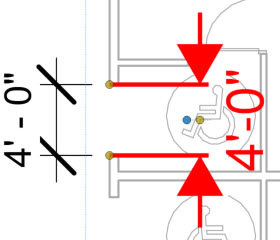
- When using existing dimensions in the PDF as calibration points, the measurements worked as expected, as shown in the image below, (Black dimension=Revit, Red dimension=Bluebeam).
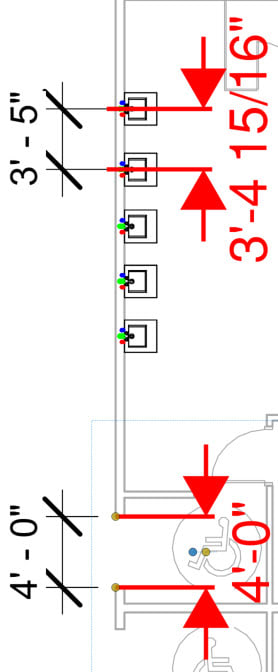
- But when taking another measurement based on the Revit dimensions (not the actual object), the result was incorrect as shown in the image below.
Troubleshooting with Bluebeam
After opening a support case, I was advised to: - Recreate the PDF using the Bluebeam add-in.
- Verify the scale in Revit.
- Have others in the office test calibration and measurements.
- Check Viewports in Bluebeam for predefined scales and delete them if present.
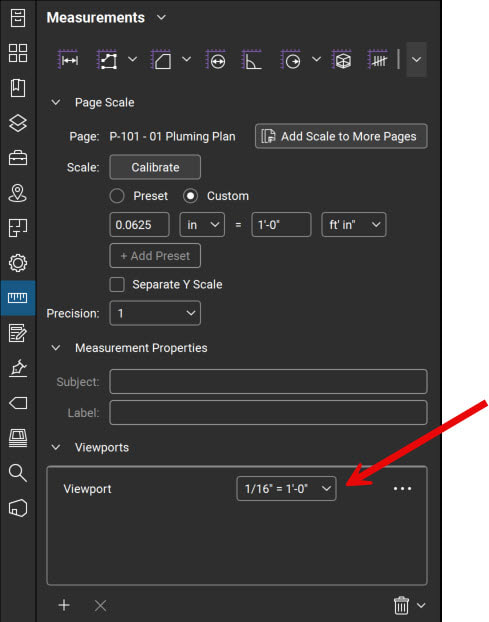
Despite these steps, the issue persisted.
The Fix: Use Revit’s Native PDF Export
When I exported the same sheet using Revit 2026’s standard File > Export > PDF Export tool, it opened in Bluebeam, calibrated, and everything worked as expected:
- Calibration held on the first try itself.
- Measurements were consistent across the sheet.
- No changes to scale or settings were needed in Revit or Bluebeam.
Why This Matters
While the Bluebeam add-on has been useful in the past, this experience highlights the greater reliability of Revit’s native exporter. If your goal is dependable on measurement, cleaner vector output, and predictable calibration, it's always a good idea to also test with Revit’s built-in PDF Export tool.
About the Author
Follow on Linkedin More Content by Cherisse Biddulph


