

Thanks to those of you who attended my Webcast about hatching in AutoCAD. We have posted the recording online here for you to view at your convenience.
The following are some of the questions that were asked during the webcast and I hope that my answers will explain hatching a little further.
Question: If you are in a .CTB file, you can get AutoCAD to plot a, lets say, concrete hatch with a gray background because the color can map to the correct gray you want and it looks great. However, if you are in a .STB file, you can get it to "somewhat" work, but the concrete pattern also shows grayish. Is this achievable?
Answer: This happens because in a CTB file the AutoCAD color is mapped to specific plotting properties including grayscale. For example, blue color always plots at a specific lineweight in grayscale. On the other hand, the STB file does not include a mapping that converts colors to grayscale. If you want to have similar results in stb, you can try to create STB files that replicate the CTB file’s color-to-gray mappings. AutoCAD has a CONVERTCTB command that converts a color-dependent plot style table (CTB) to a named plot style table (STB). For more information about this command, check the AutoCAD help.
------------------------------
Question: What command sets the layer for all future hatches?
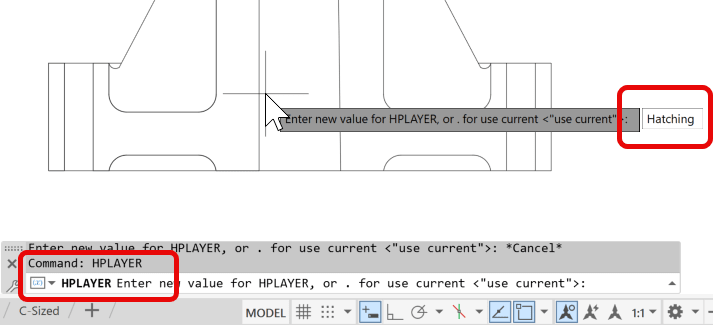
Answer: Use the HPLAYER system variable to set a default layer for new hatches. By default, the hatch is created on the current layer, but you can set HPLAYER to any layer name which you have created specifically for hatching. The default setting for the variable is to use the current layer for hatching. In the example below, I have created the layer Hatching to be used while hatching. In the image below I am setting the HPLAYER to the layer Hatching.
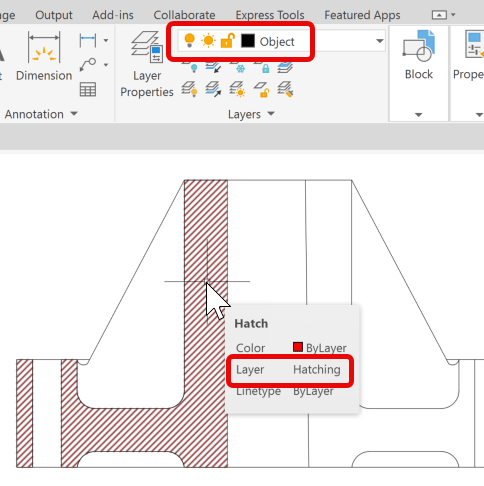
In the image below, note that the current layer is set to Object (the color is black), but when I hatch the object, it uses the layer Hatching (color is red).
------------------------------
Question: Is there a way to stretch a non-associative hatch together with other objects or does it have to be done separately?
Answer: In some limited situations it can be done but it is not the recommended method to use. It can be done by selecting the grips of separate objects including the hatch object and then stretching them. In the figure below, I am selecting the vertical line to display its grips and then select the hatch to display the grips.
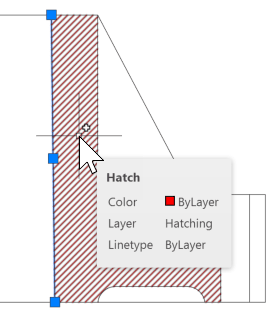
Using the middle grip of both the line and the hatch, I can stretch both the objects together. Note that the vertical line and the hatch object are both stretched to the left, as shown in the image below.

------------------------------
Question: How to display the hatch at different viewport scales?
Answer: The display of hatches is dependent on the viewport scale.
- In the image below the hatch has been applied to the objects that are in the lower larger viewport that has a viewport scale of 1/2"=1’0”. Note that the hatching does not display in the upper smaller viewport.
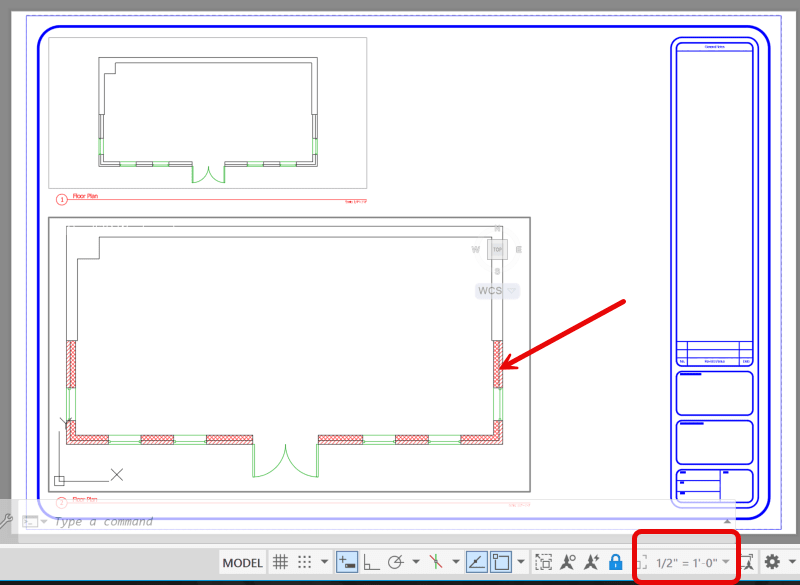
- To make the hatching visible in the smaller viewport we are required to add its viewport scale which is 1/4"=1’0”.
- Select and right-click on any one of the hatches and then select Properties to open the Properties palette.
- In the Pattern rollout, click in the Annotative scale edit box to open the Annotation Object Scale dialog box.
- Click on Add button to open the Add Scales to Object dialog box and select 1/4"=1’0”.

- Click OK in both the dialog boxes and note how the hatches display in the smaller viewport as well.

------------------------------
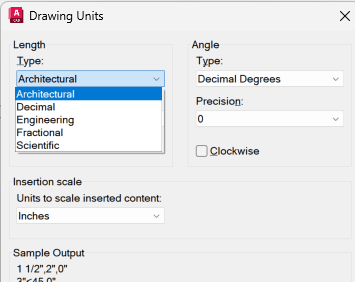
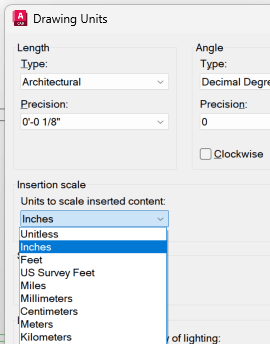
Question: How can you change the scale from metric to architectural?
Answer: This can be done through the Drawing Units dialog box (enter Units in the Command line), where you can change the Units and the Insertion scale as well.
In this webcast I provided a broad overview about hatching. The topic is pretty vast and I am hoping that this information will urge you to dive deeper into the world of hatching, and if you do, have fun! The information presented was pulled from our AutoCAD 2026 Essentials learning guide which is available for you on Amazon as well as on our ASCENT eStore.
About the Author
Follow on Linkedin More Content by Renu Muthoo


