

I previously wrote about how you can adjust your clip speed in Camtasia to align your video to match the audio, which works well for recorded demos. But what if you have something simpler, like a PowerPoint presentation, that make use of static frames rather than video recordings? (Check out my last blog for steps on how to create a video quickly from your slides.) As an alternative to changing your clip speed, here are two quick options for extending your frames.
Extend the Frame
The first thing you can do is break your video where you need the frame to extend, then drag out the end of the frame at the split.
-
To break your video, select the media on the track, place your playhead on the timeline where you want the split to occur, and press <S>. You can also right-click and select Split Selected.

-
To extend the frame, press and hold <Alt>, then click and drag the end of the section to your desired point on the timeline. IMPORTANT: If you don’t hold <Alt> while dragging, it will extend the section to include content that occurs after the split. Holding <Alt> extends the final frame of the section so that it is static.

Here is an animated GIF to see the process in action:
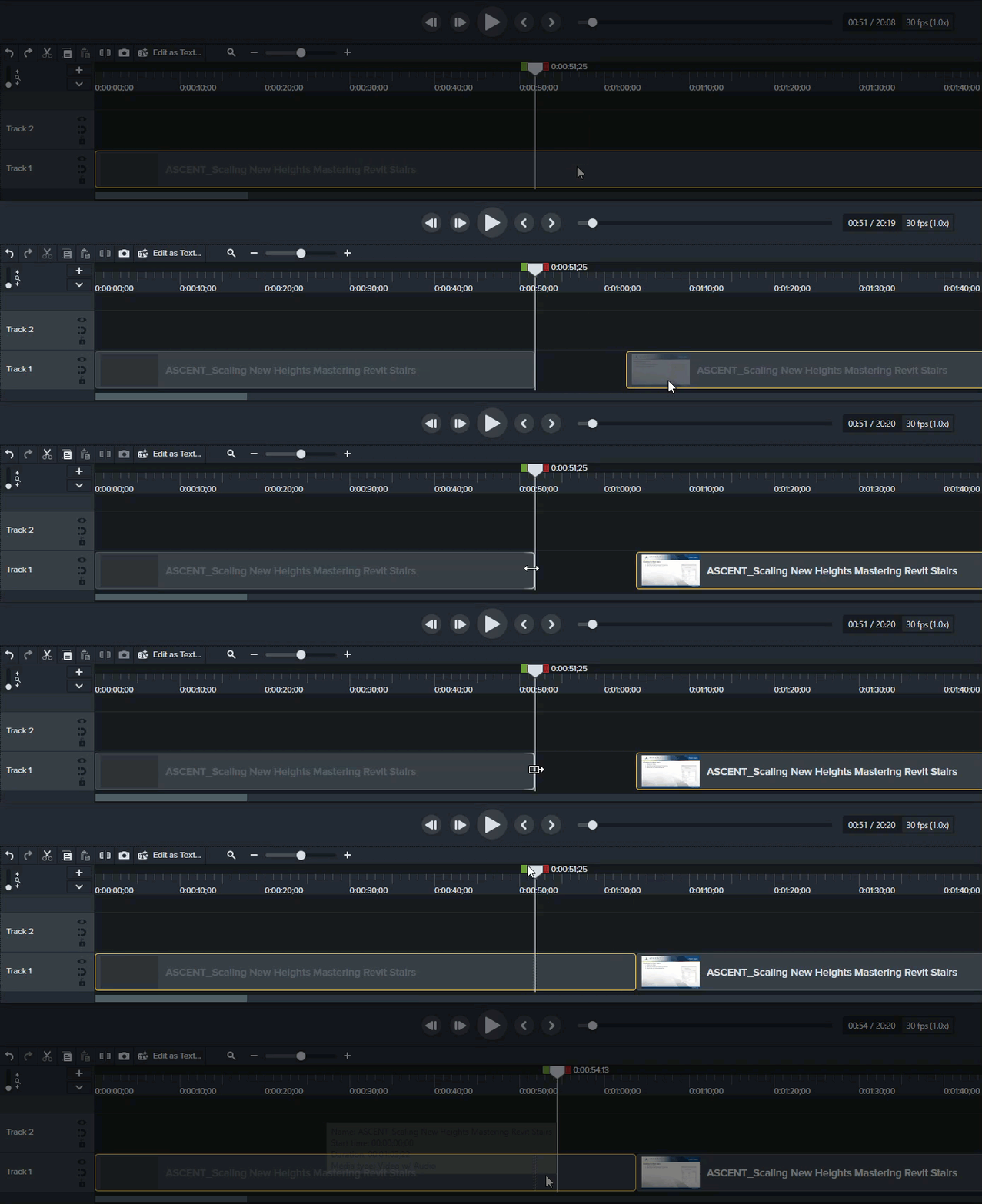
When finished, you will see a stitch in your media track where the frame was extended.

Export Frame As
Another option is to create a still shot of a frame and then add the image to your media. Because the image is static, you can extend it for as long as required without accidentally including extra content.
-
Place the playhead at the frame you wish to capture, then select Export>Export Frame As. This will allow you to save the frame as an image file.

-
Alternatively, you can press <Ctrl>+<Shift>+<F> at any point to add the current frame as an image directly to the timeline (as shown in the animated GIF below).
-
To insert the image, split your video as mentioned above, then insert the image to the correct position and drag to extend (or contract) it as needed.
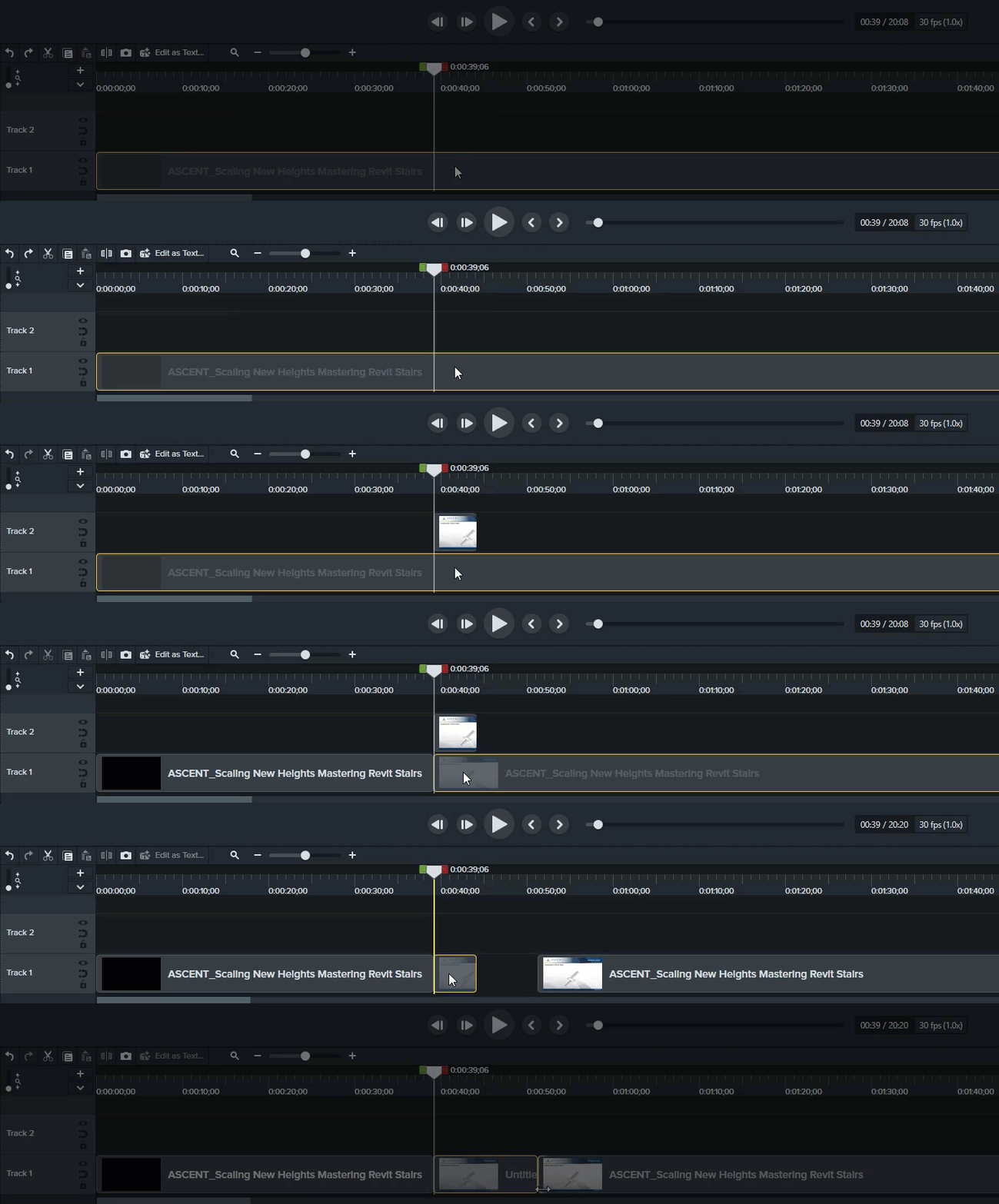
Hint: Pay close attention to the beginning and end of your sections when extending or inserting frames. You will want to ensure any transitions are still seamless between sections. You can also add transitions between sections if your project calls for it – check out my next blog to learn how!
About the Author
Follow on Linkedin More Content by Breanne MacDonald


