

Thanks to those of you who attended my Webcast about the Autodesk AI tools in AutoCAD. For those of you who could not attend the live webcast you will find the recording useful. You can view the on-demand recording here.
The following are some of the questions that were asked during the webcast and I hope that the answers will explain the AI features a little further.
Question: You said that the Detect and Convert tool detects similar objects. Will it include chairs where the chair back isn’t the exact identical thickness?
Question: What happens if the similar objects are on different layers?
Answer: Yes, the Detect and Convert tool will detect and create a set of similar objects. The objects do not have to be exact. The Autodesk AI analyzes objects based on:
- Geometric similarity: Objects with similar shapres and proportions
- Object type recognition: Objects that serve the same function
- Scale and dimensions: Objects of comparable size
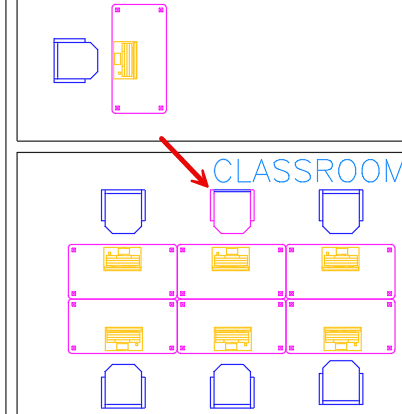
Note in the image below, I have modified one of the chair back thickness and changed the layer of some of the geometry of a chair.
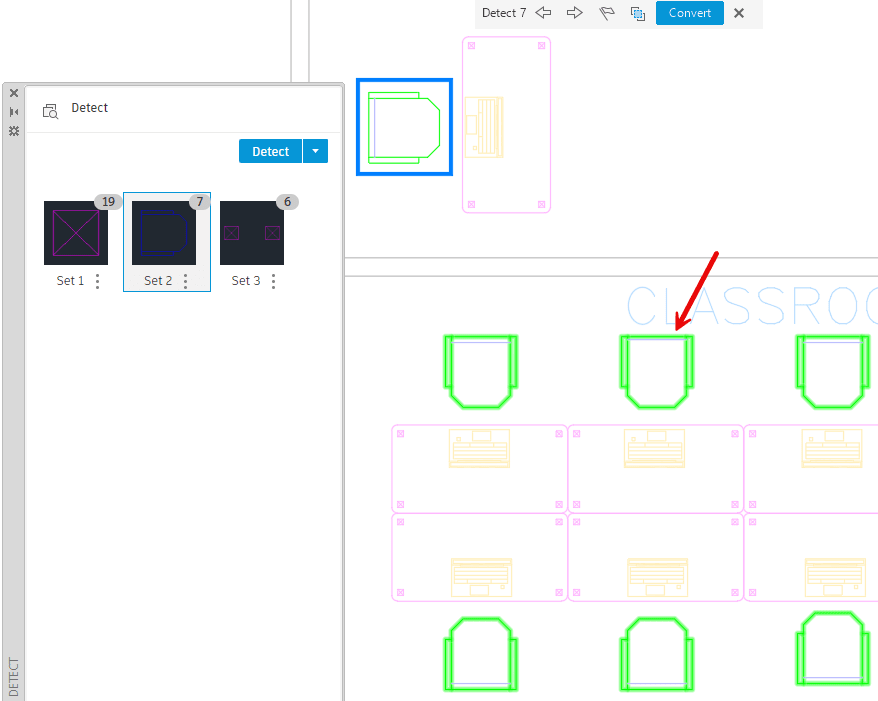
The Detect and Convert tool detected similar objects and note that the variation of the chair (reduced back thickness and different layer) is included in the set.
Question: Why would a CAD drafter draw all of the chairs as lines and not use blocks in the first place? What is the use of Detect and Convert or Search and Convert tool?
Answer: Both the Detect and Convert and Search and Convert tools are particularly useful in different situations and scenarios. Some of them are:
· These tools are especially useful when you receive drawings from other applications. For example, when importing a PDF drawing, all the geometry is in the form of individual geometry. Using Detect and Convert tool can detect similar shapes and convert them into block references.
· The Detect and Convert tool minimizes redundant work by providing you with smart detection and conversion capabilities.
· Both the conversion tools can be used to replace custom geometry with standard blocks from the library.
· These tools can be used for updating old legacy drawings where the geometry might not been created using proper block functionality.
· Using these tools can be useful to add attributes for text variations in a drawing. For example, hotel room numbers, room names, any repetitive text with slight variations, etc.
Question: How does the Detect and Convert tool select the sets?
Answer: The Detect and Convert tool leverages machine language to identify sets of similar objects. It carefully analyzes the drawing geometry and pinpoints the objects that are suitable for conversion.
Question: Can Markup Assist be used to make actual changes and not just transfer revclouds to the drawing?
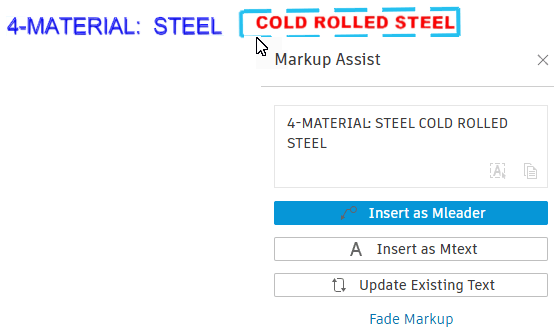
Answer: In addition to converting the boundary markups to AutoCAD actionable revclouds, the text markups can be inserted as mtext or they can be used to update the existing text in the drawing. Once the markup text is detected and is identified with the dashed bounding box, clicking on it provides you with Text related options. You can edit the text before inserting it or use Update Existing Text to replace or amend existing text in the drawing.
Question: Does the Markup Import tool import only PDF files and can Markup Assist identify markups in PDF files only?
Answer: The Markup Import tool imports markups from digital copies, photographs, or scanned versions of drawings in any of these formats. For example, you can take a photograph of a printed drawing with hand-written revision notes and import it as a JPG or PNG file. Essentially you can use the Markup Import tool to import PDF files, PNG files, and JPG files and the Markup Assist can identify markups from all of these 3 file formats.
Question: If aPDF has blocks made up of items on multiple layers, does AI convert the PDF information into a block with the same multiple layers.
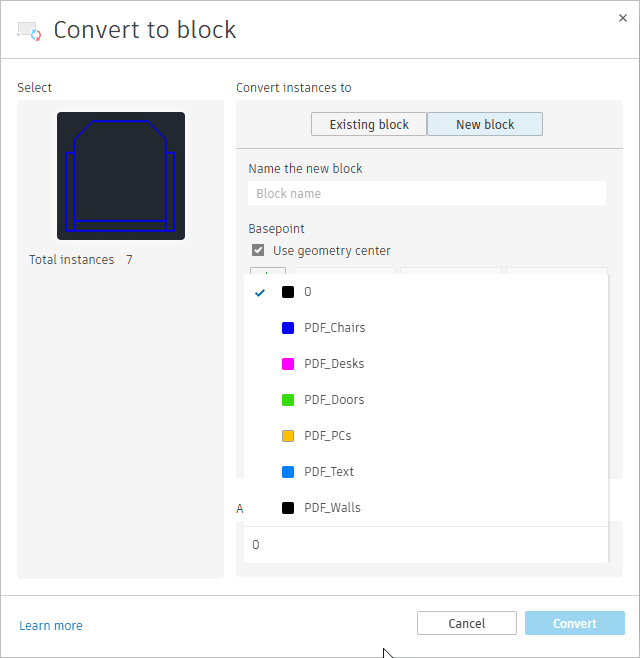
Answer: The PDF files lose block structure and contains objects as geometric data, text, and raster images. The blocks are broken into individual geometry. However the layers are handled differently depending on the PDF import settings. When converting to blocks using the Search and Convert/ Detect and Convert tools, you have the option of selecting the layer for converting the blocks.
Question: Does AI check for a block that is in a block library on the network, or just check against existing blocks in the subject drawing?
Answer: As of now, while using the Search and Convert/Detect and Convert tools, the AI suggests blocks from the Libraries tab of the Blocks palette. Additionally it displays the Recent blocks used and also blocks from the current drawing.
Thank you again to everyone who attended the webcast. I hope this Q&A will help clarify how Autodesk AI tools in AutoCAD can support everyday drafting workflows. While many of these features are still evolving in Tech Preview mode, they already show the potential to reduce repetitive tasks, improve drawing consistency, and help users work more efficiently. I encourage you to continue exploring these tools and seeing how they can fit into your own AutoCAD projects. The information is provided in our AutoCAD 2027 Essentials and AutoCAD 2027 Beyond the Basics learning guides, available on Amazon and through the ASCENT eStore.
About the Author
Follow on Linkedin More Content by Renu Muthoo


